Factory Reset
Factory Reset (Firmware Flashing)
You can reset your ArkKVM by reinstalling the factory firmware using DFU (Device Firmware Update) mode, also known as recovery mode.
This process installs the official firmware and restores the device to factory settings. It can also be used to perform an offline firmware update.
Use this method if you cannot access the device (for example, via SSH) or want to start with a clean system.
Entering DFU Mode
DFU mode allows firmware to be flashed directly to the device.
Follow the steps below to enter DFU mode:
- Disconnect the USB cable from the device. If powered via PoE, disconnect the Ethernet cable as well.
- Locate the small hole on the right side of the device.
- Insert a thin pin (such as a SIM eject tool) into the hole and press and hold the reset button inside.
- While holding the button, reconnect the USB cable to power on the device.
- Release the pin. The device will enter DFU mode.
In short, the key idea is to keep the reset button pressed while the device is being powered on through USB, which forces the device to enter DFU/Maskrom mode during startup.
If your computer does not recognize the ArkKVM device while attempting to enter DFU mode, and you are using a USB-C to USB-C cable, this may be related to USB-C connector orientation or cable compatibility. Please unplug the USB-C cable, flip the connector 180°, and then repeat the full DFU entry process.
Flashing the Firmware
Download the ArkKVM firmware from the ArkKVM System Images GitHub repository . Follow the instructions below for your computer to flash the firmware:
Linux (ubuntu)
- Download and extract the firmware flashing tool. Then make the tool executable in Terminal:
chmod 755 upgrade_tool
- Put your ArkKVM device into DFU mode and connect it to your computer. Then run the following commands to verify that the device is detected.
The following command is for reference only. Please replace the image file name and path with the actual ones you are using.
cd upgrade_tool_v2.55_for_linux
./upgrade_tool ld
After running the command, you should see output similar to:
List of rockusb connected(1)
DevNo=1 Vid=0x2207,Pid=0x110c,LocationID=31    Mode=Maskrom    SerialNo=
- Run the following commands to flash the firmware:
The following command is for reference only. Please replace the image file name and path with the actual ones you are using.
cd upgrade_tool_v2.55_for_linux
./upgrade_tool uf /home/arkkvm/Downloads/arkkvm-system-image-v1.img
- The flashing progress will be displayed as a percentage, and the process is complete when you see “Upgrade firmware ok.”
Download Image... (100%)
Download Firmware Success
Upgrade firmware ok.
macOS
- Download and extract the firmware flashing tool.
When using the flashing tool on macOS, please note the following:
a. Grant Execute Permission
After extracting the package, you need to make the tool executable in Terminal:
chmod 755 upgrade_tool
b. Allow the App to Run (Gatekeeper)
Since the tool is downloaded from the internet, macOS may block it by default.
If you see a warning like:
"upgrade_tool cannot be opened because it is from an unidentified developer"
Please allow it manually:
- Go to
System Settings → Privacy & Security - Scroll down to the
Securitysection - Click
Allow Anywaynext toupgrade_tool - Re-run the command in Terminal
- Put your ArkKVM device into DFU mode and connect it to your computer. Then run the following commands to verify that the device is detected.
cd upgrade_tool_v2.55_for_mac
./upgrade_tool ld
You should see output similar to::
List of rockusb connected(1)
DevNo=1        Vid=0x2207,Pid=0x110c,LocationID=1        Mode=Maskrom        SerialNo=
If your Mac does not recognize the ArkKVM device (e.g., it shows List of rockusb connected(0)), and you are using a USB-C to USB-C cable, this may be due to the USB-C pin configuration.
Try unplugging the cable, flipping the USB-C connector (rotate it 180°), and plugging it back in.
- Run the following commands to flash the firmware:
The following command is only for reference. Please use your actual image file name and path according to the actual image file you are using.
cd upgrade_tool_v2.55_for_mac
sudo ./upgrade_tool uf arkkvm-system-image-v1.img
- The flashing progress will be displayed as a percentage, and the process is complete when you see "Upgrade firmware ok."
Download Image... (100%)
Download Firmware Success
Upgrade firmware ok.
Windows
1. Install driver
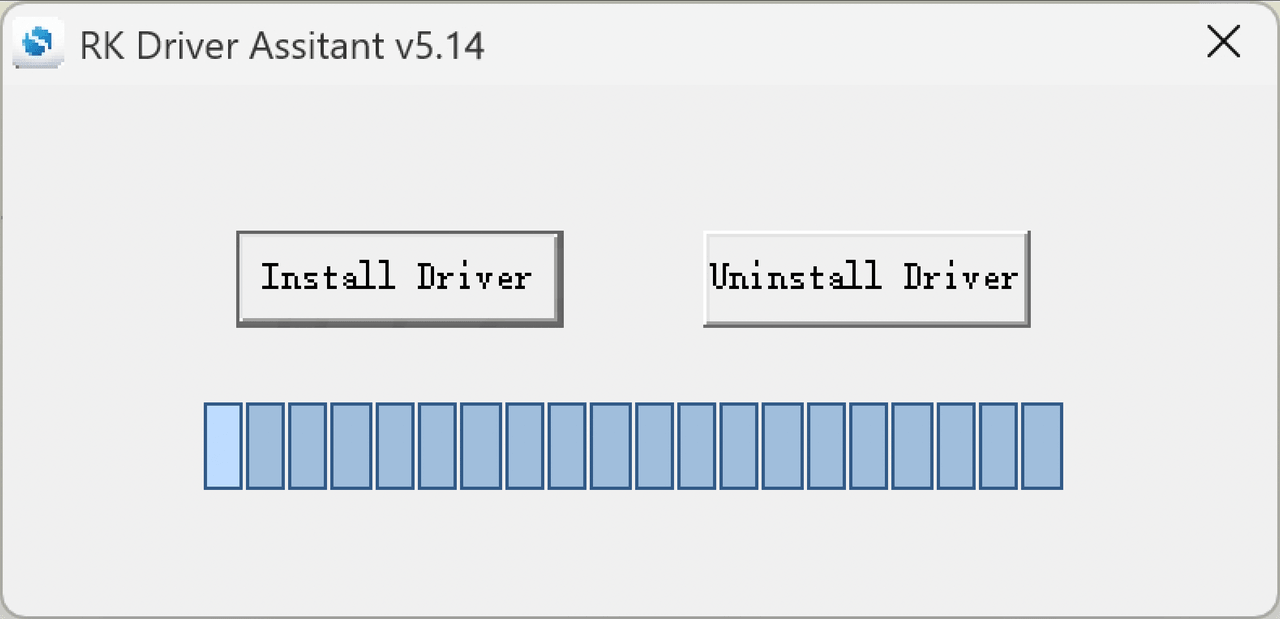
- Download the RK DriverAssitant for Windows from the ArkKVM Tools GitHub repository.
- Open the RK Driver Assistant to install the USB driver. There is no need to connect during this process.
2. Flashing the firmware
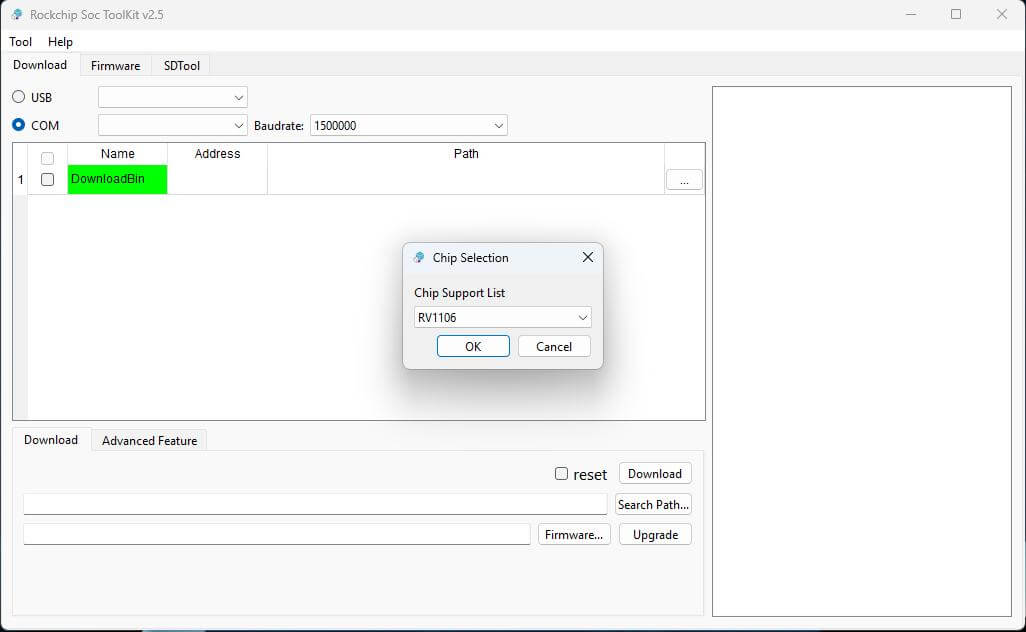
- Download and extract the SocToolKit for Windows.
- Open SocToolKit.exeand select RV1106.
- Put your ArkKVM device into DFU mode and connect it to your computer.
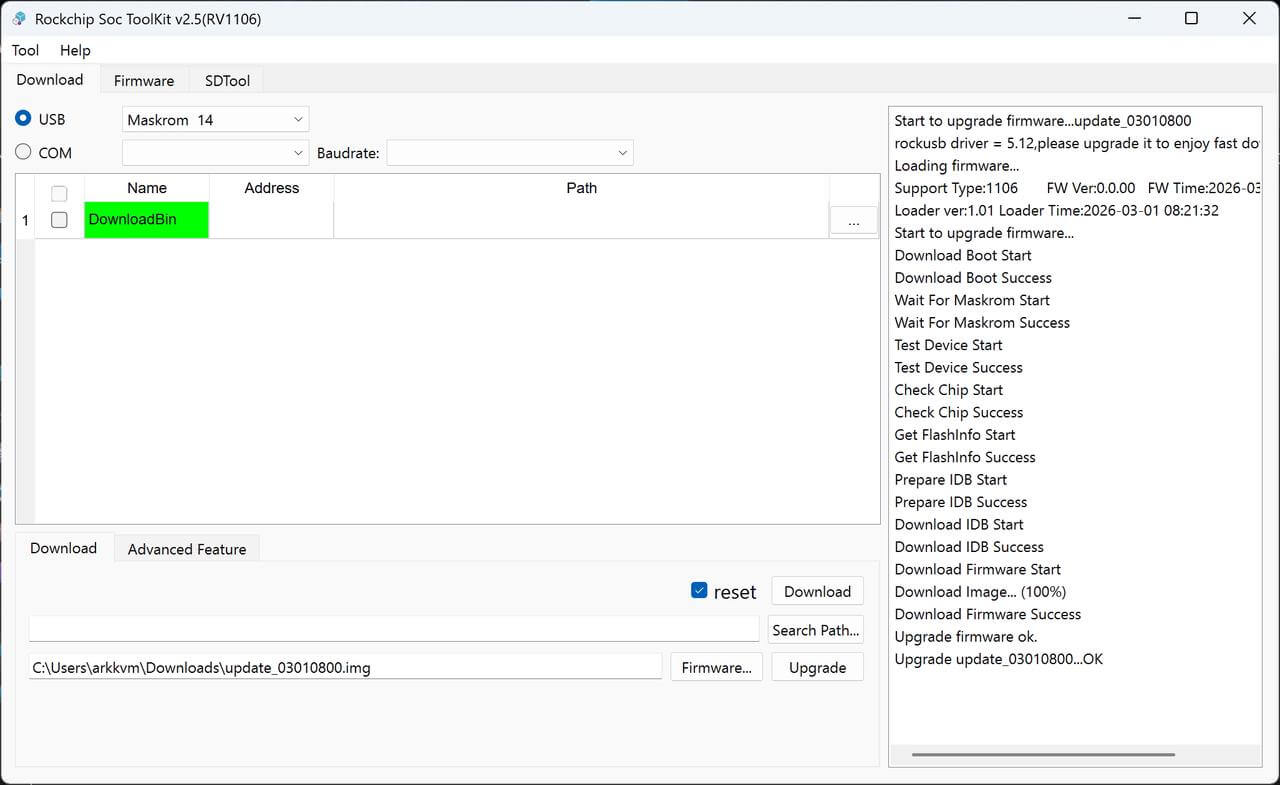
- Under the Download tab, select USB and confirm the device is listed as Maskrom device (device number may vary).
- Click the Firmware... button, then select the firmware file.
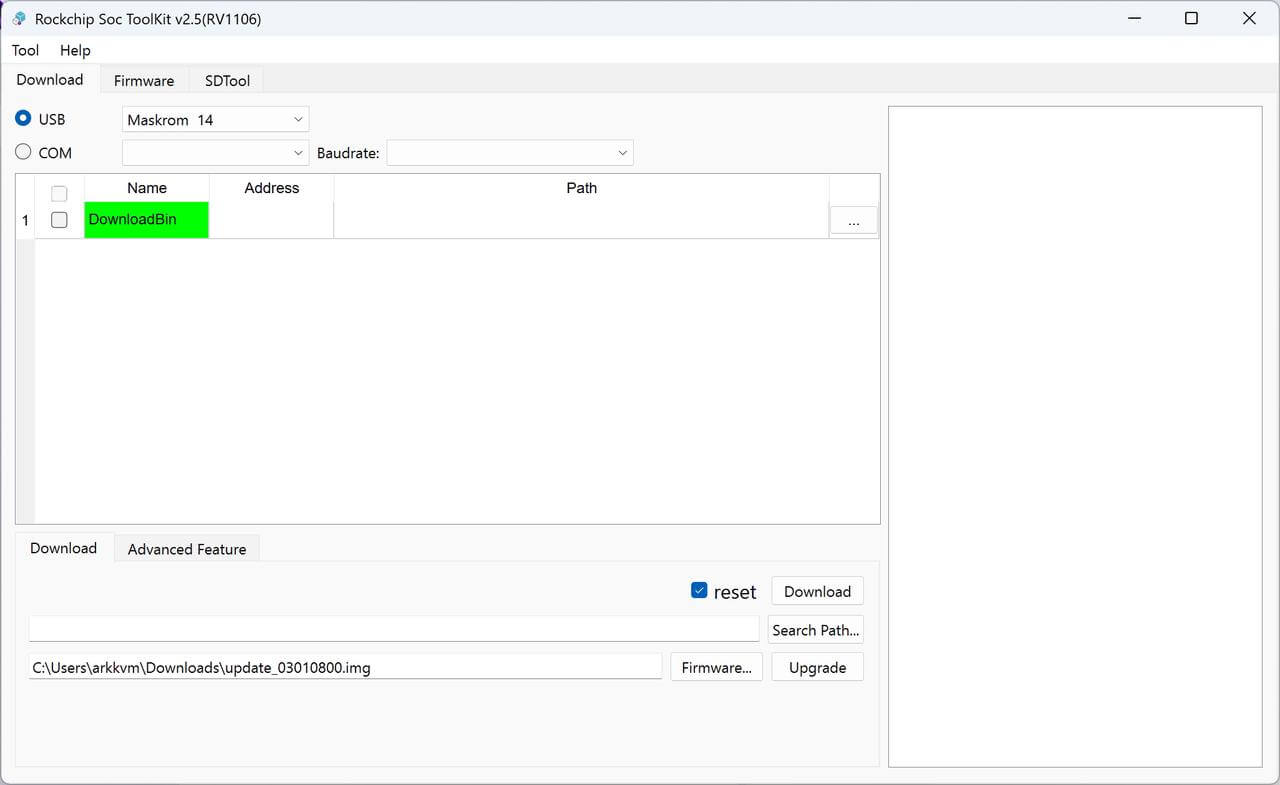
- Click Upgrade to start flashing. When the process completes, the device will reboot automatically if the Reset option is enabled.